Calendar
The “Calendar” app  lets you manage your events.
Every channel has a default calendar. You can access it via the “Calendar” app.
The Calendar app allows you to manage your own events, but also to display events as an event calendar for visitors to the website. Connected users with a Hubzilla channel will see the shared events in their stream. They can be added to their own calendar via the post menu (“⋮”). The calendar post can receive a “yes,” “no,” or “undecided” response from the recipient, which is displayed to the calendar owner.
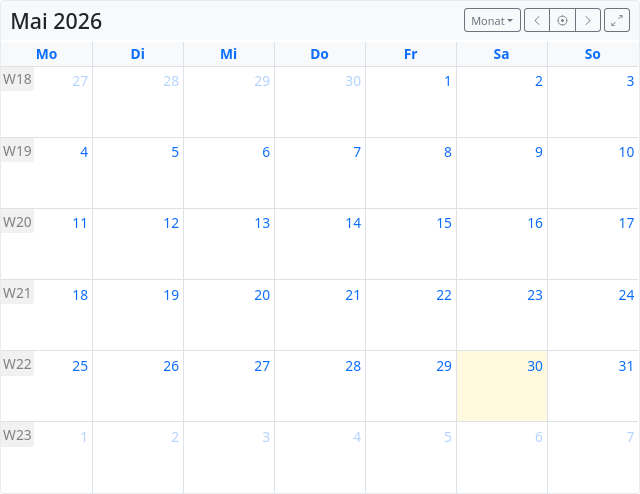
In the calendar settings, you can choose whether the week starts on Monday or Sunday. You can also optionally configure time zones.
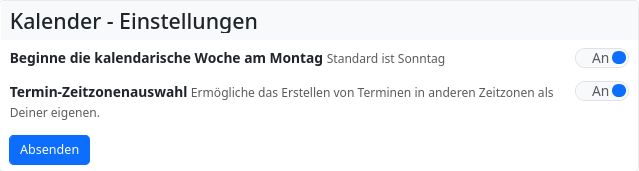
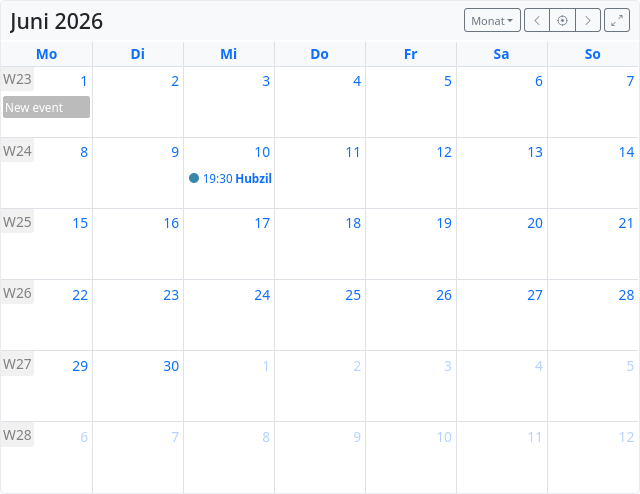
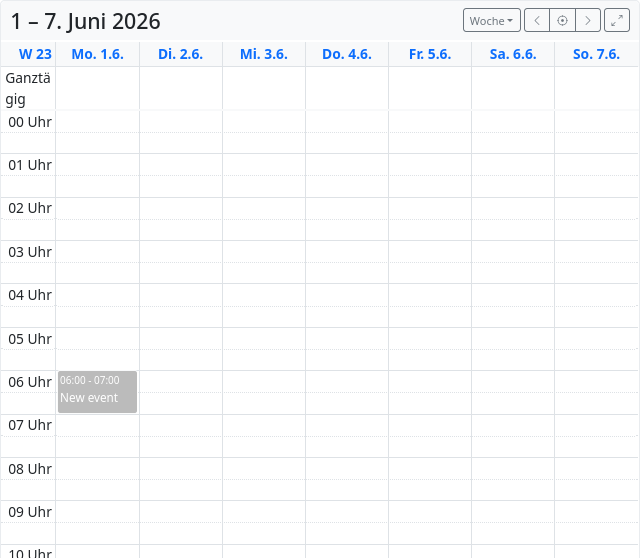
You can add new events by clicking on the corresponding day. If you do this in the monthly view, all-day events will be created. In the weekly and daily views, you can specify the exact start and end times of the event.
Event in the monthly view:
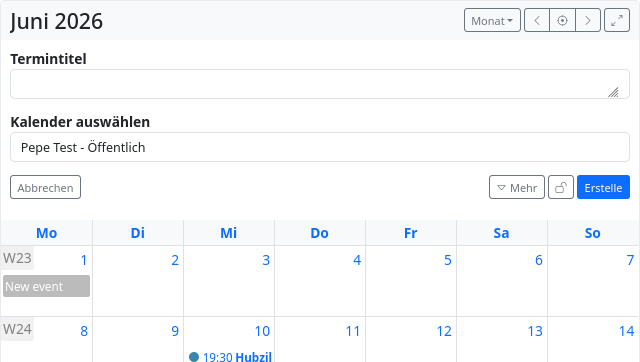
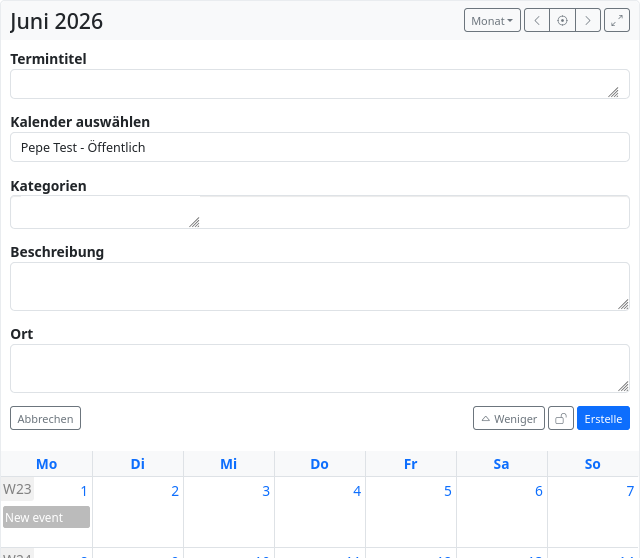
You can enter additional details about the event using the “More” dropdown menu.
Event in the weekly view:
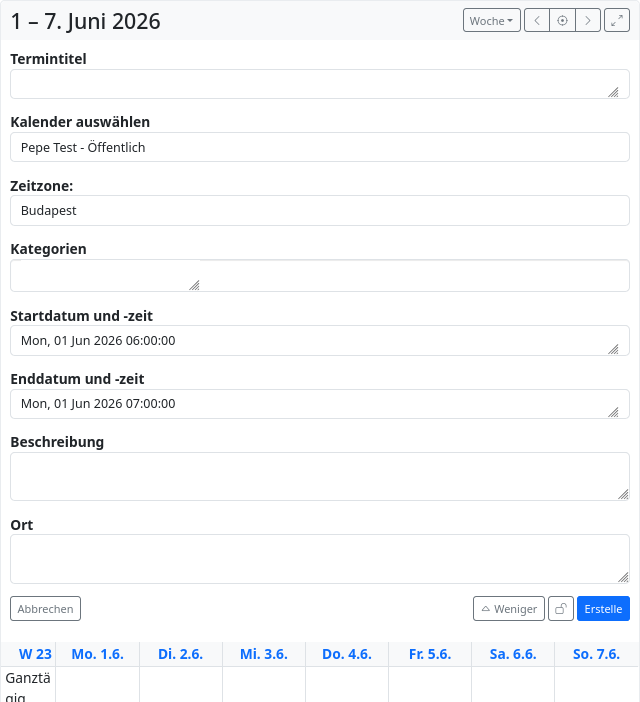
You can use the permissions tool  to specify who is allowed to access the calendar entry.
Once you have created an event, it will appear in your channel stream and, if you are connected to other channels and have granted the appropriate permissions for the event, it will also appear in the streams of those connected channels.
to specify who is allowed to access the calendar entry.
Once you have created an event, it will appear in your channel stream and, if you are connected to other channels and have granted the appropriate permissions for the event, it will also appear in the streams of those connected channels.
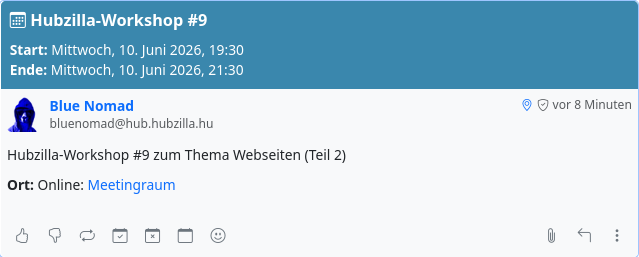
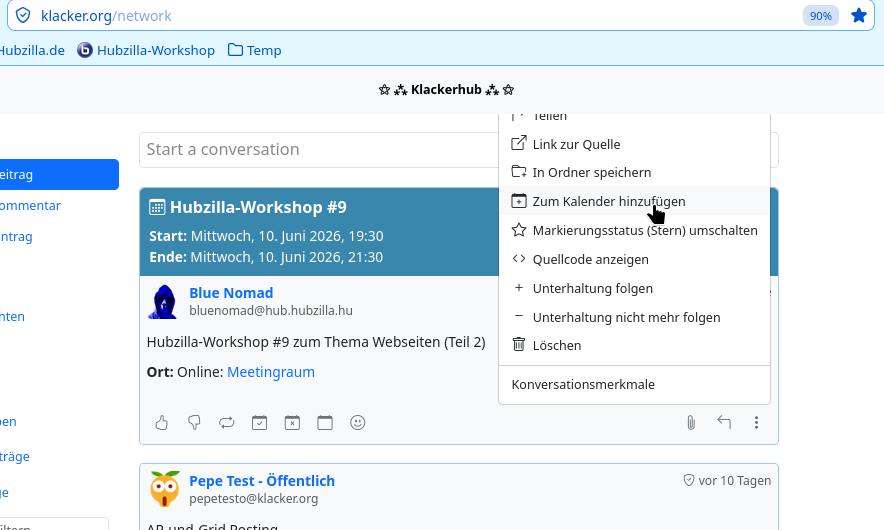
If you receive a calendar entry from a connected channel in your stream, you can add the entry to your own calendar via the post menu ⋮.
Within your Calendar app, you can add as many additional calendars as you like for various purposes. You can also export calendars as ICS files and import calendars from ICS files.
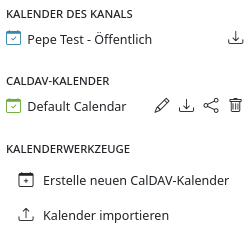
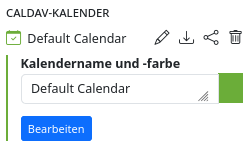
In addition, a calendar can be exported (i.e., downloaded as a file) or deleted. The calendar’s title and color can also be customized.
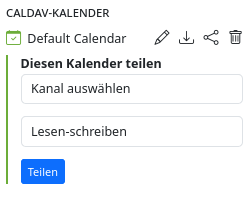
In Calendar Management, you can still share a calendar with another channel.
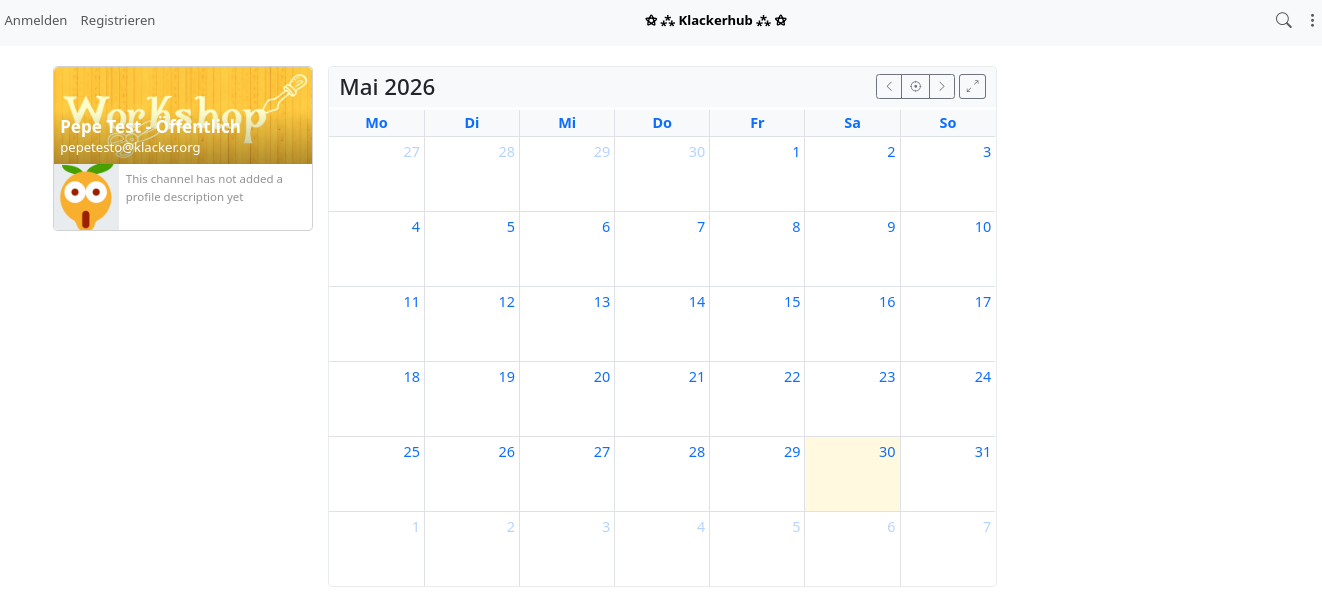
When you open the Calendar app in your channel, your calendars and their entries are displayed. This app view has the URL <YOUR_HUB>/cdav/calendar and is not available to visitors to your site. To display your calendar to visitors as well, you must use the view with the URL <YOUR_HUB>/cal/<CHANNEL_NAME>.
Calendar apps (e.g., on a mobile device) that support CalDAV synchronization can be synced with a Hubzilla calendar.
Use “URL” and “Username” to log in. The base URL is <URL-of-your-hub>/cdav, the username is your channel name (without the leading “@” and without the hub address “@<your-hub>”). The password requested is the password for your Hubzilla account.